
What you will learn here
Configuration for feature Backup & Restore
How to Backup CBPP data
Following these steps to go to the Backup page:
-
Select :cog: > General Configuration
-
Under the section Browser People Permission for Confluence, select Backup
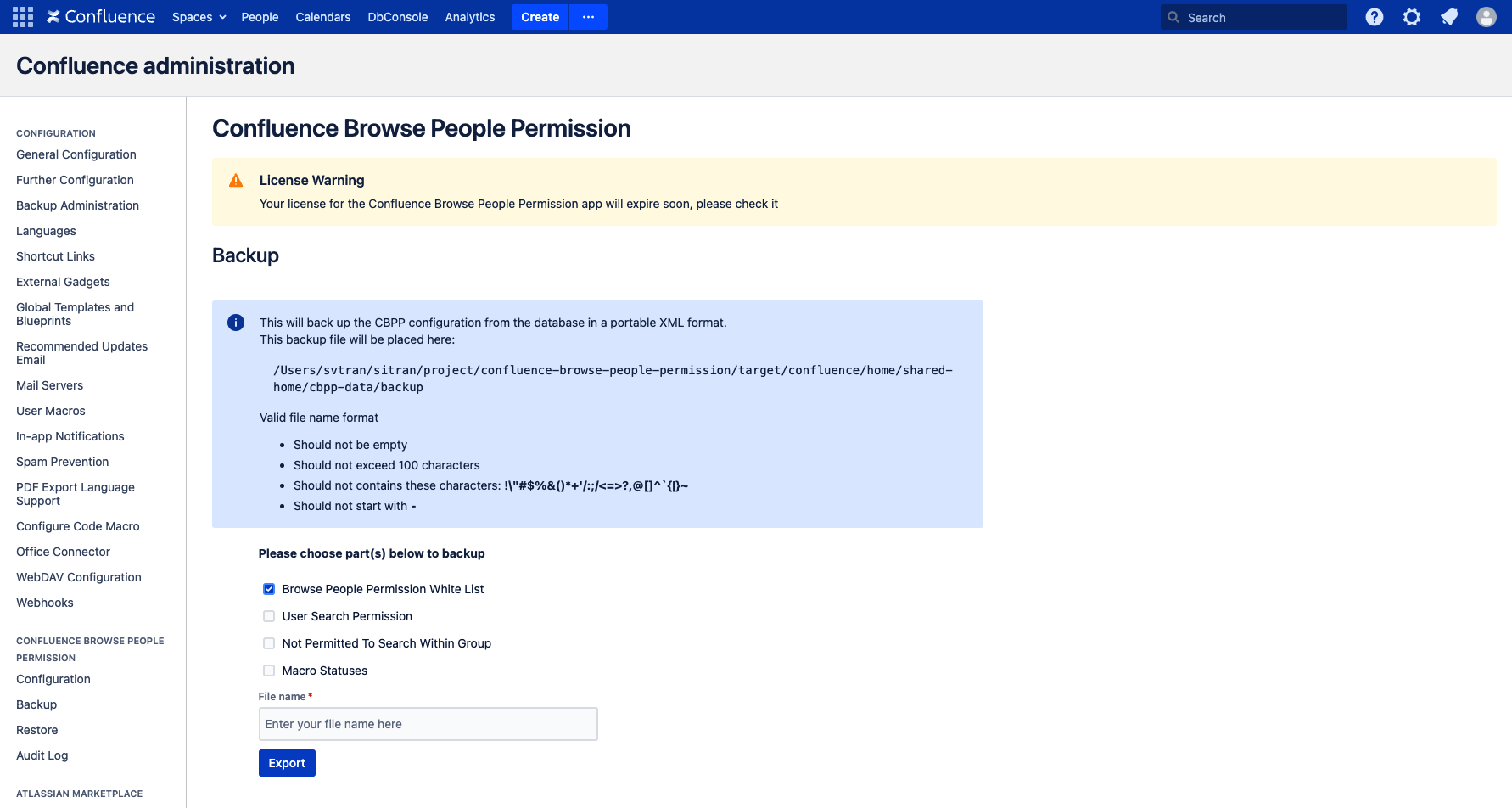
To perform a backup, please follow these steps:
-
Select one or more data sets that you wish to back up.
-
Enter a file name with the correct format.
-
Click the "Export" button.
-
The backup file will be saved in the directory displayed on the panel
By following these steps, you will successfully create a backup of the selected data sets, and the backup file will be stored in the designated directory.
How to Restore CBPP data
Backup data first!
Restoring a backup will overwrite all existing Confluence data in your database. Please back up your database before you start.
Following these steps to go to the Restore page:
-
Select :cog: > General Configuration
-
Under the section Browser People Permission for Confluence, select Restore
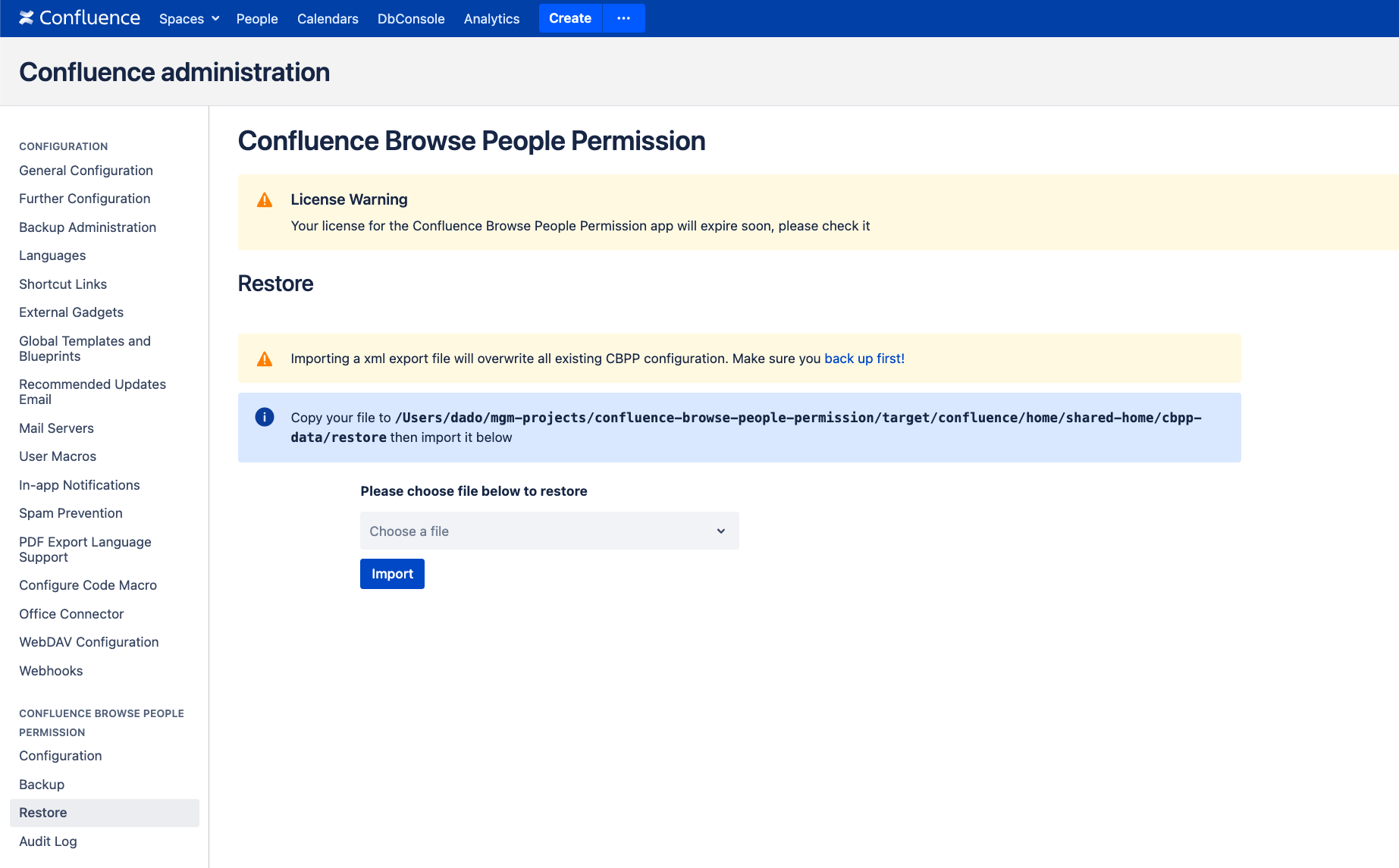
To complete the data restoration process, please follow these steps:
-
Copy the backup file to the directory displayed on the panel.
-
Once the backup file is successfully placed in the designated directory, proceed to the next step.
-
In the dropdown button, select the backup file that you copied.
-
Finally, click on the "Import" button to initiate the data restoration process.
By following these steps, you will be able to restore the desired data from the backup file.