
Start the execution from the Test Case selection, Test Case in Run details, or the Test Scope tab.
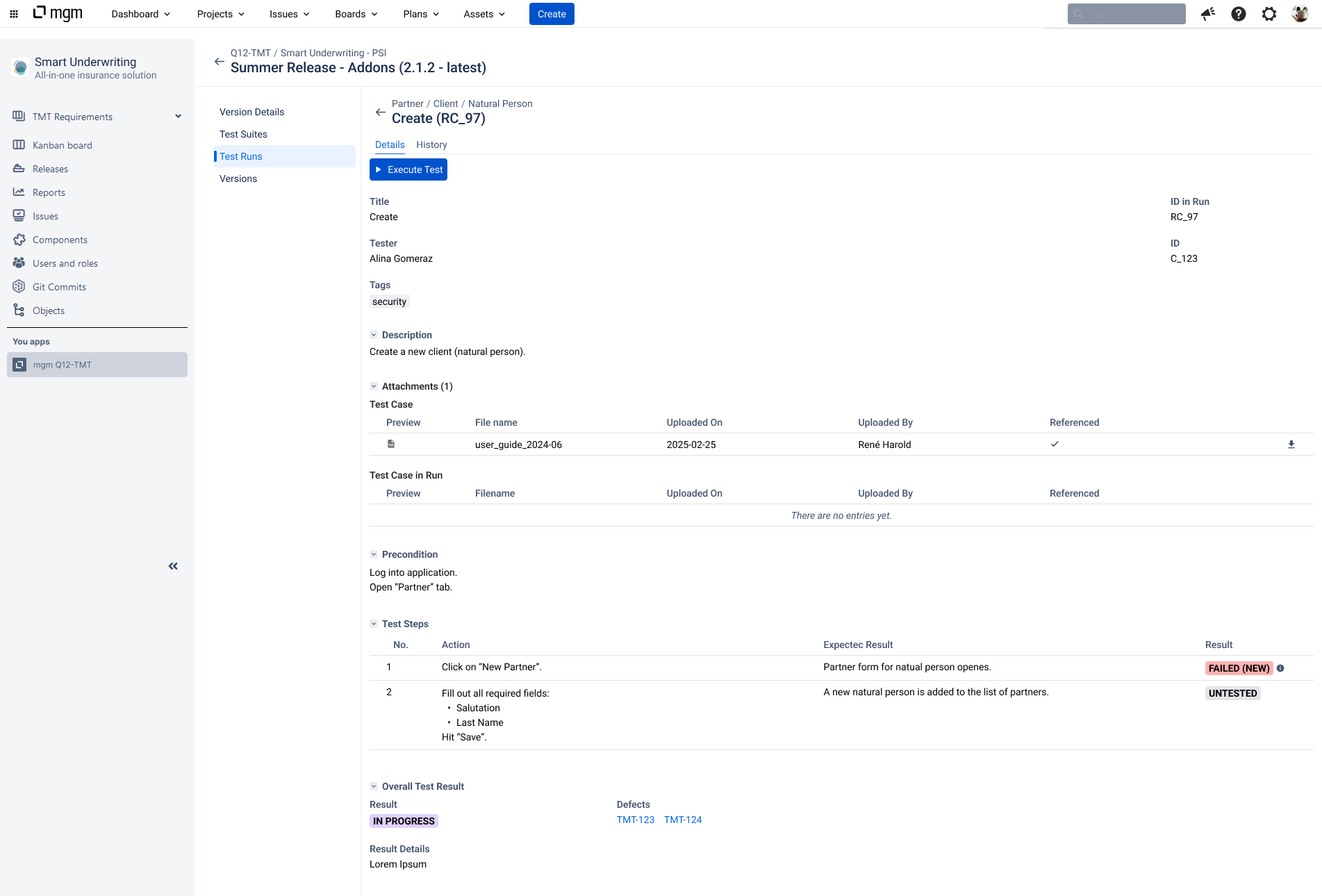
The Test Case in Run is in edit mode during Test Case execution:
-
A tester can be assigned.
-
Attachments can be uploaded. (e.g. Screenshots or log files to show what happened during the test)
-
A result can be selected for each individual test step.
-
Edit: A custom result and detail can be entered.
-
Thumb: Mark the test step as passed.
-
-
An overall test result can be selected.
-
A defect (ticket) can be added.
-
A result detail can be added.
The overall result can be set independently of the individual test step results.
When a custom result is attached, an information icon will appear next to the test step result, showing the content by hovering over it. Thus, errors can be located very quickly, and they can be documented by useful information, e.g. the error message.
The overall result is displayed in the test scope and Test Case selection overview.
To prevent concurrent working, some functions may be temporarily locked.