
📘 What you will learn here
On this page you will learn how to read the Sync Bridge panel on a work item (which sync rules apply, their sync status and the linked work item on the other Jira site) and how to use its actions to start or fix a sync for a single work item.
Open the panel
-
Open a work item on this Jira site.
-
Select Sync Bridge in the work item's apps area to open the panel.
Anyone with the Browse projects permission for the work item can open the panel. What you can do in it depends on your permissions (see Who can do what below).
What the panel shows
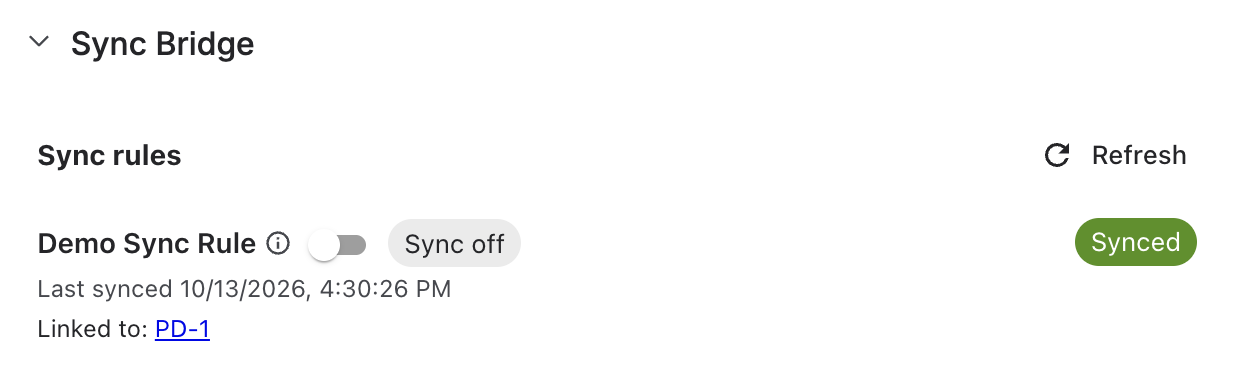
The panel has the heading Sync rules and one row per sync rule. If no rule applies, it shows No sync rules apply to this work item.
A rule gets a row when:
-
The rule has already synced this work item (or tried to). The row stays even if an admin later turns the rule off.
-
The rule matches this work item but hasn't run yet, and either it has a per-work-item sync switch, or you're a Jira admin and the rule allows a manual push.
Each row can show:
|
Item |
What it means |
|---|---|
|
Rule name |
The sync rule's name. Hover the info icon next to it to see the rule ID. |
|
Status chip |
The current sync status: Pending, Syncing…, Synced or Sync failed. Not shown until the rule has run on this work item. |
|
Last synced / Last failed |
The date and time of the most recent successful or failed run, for example Last synced followed by the date. |
|
Linked to |
The key of the linked work item on the other Jira site. Select it to open that work item in a new tab. |
|
Error message |
When the status is Sync failed, a red message explains what went wrong. |
|
Sync switch |
Shown only when the admin has turned on the per-work-item sync switch for the rule. See Turn Sync On or Off for a Work Item. |
|
Sync off chip |
Sync is turned off for this work item for this rule. |
|
Rule deleted chip |
The rule was deleted. Its name is crossed out (or shown as Deleted sync rule), nothing syncs through it any more, and its last result and link are kept for reference. |
Actions
|
Action |
Where |
What it does |
|---|---|---|
|
Push all |
Panel header |
Starts a push for every rule on this work item that allows a manual push. Shown only when at least one rule allows it. |
|
Refresh |
Panel header |
Reloads the panel. |
|
Push (upload icon, tooltip Push to the connected system) |
Rule row |
Sends this work item to the other Jira site now. If the work item isn't linked yet, the push creates the linked work item. |
|
Pull (download icon, tooltip Pull from the connected system) |
Rule row |
Brings changes from the linked work item into this work item now. Shown only after the rule has run on this work item, because a pull needs a linked work item. |
|
Retry |
Under the status chip |
Shown when the status is Sync failed or Pending. Runs the sync again in the direction that failed. |
|
Recheck (refresh icon) |
Rule row |
Shown when this work item or its linked work item was found archived or unreachable. Checks again whether that's still the case, for example after the work item was restored. |
|
Unlink |
Under the status chip |
Shown instead of Retry when the linked work item is unreachable (deleted, or no longer visible to the sync user). Removes the link, so the next push creates a new linked work item. The panel confirms with Unlinked. A new push will create a fresh target issue. The unlink is recorded in the Sync History tab. |
When a button can't be used, it stays visible but disabled, and its tooltip says why. Common reasons:
-
This sync rule is turned off.
-
Push is turned off for this sync rule. or Pull is turned off for this sync rule.
-
Manual sync is turned off for this sync rule.
-
This work item is archived or The linked work item is archived
-
This work item is unreachable (deleted, or no longer visible to the sync user), or the same for the linked work item
-
Your Sync Bridge license is inactive. Renew it to use this action.
If an action is refused or fails, a message appears under the row. You can close it with the close icon.
Who can do what
|
Who |
What they can do |
|---|---|
|
Anyone who can browse the work item |
See the panel, the status of each rule and the linked work item. |
|
People the admin allows to use the sync switch for a rule |
Turn sync on or off for this work item for that rule. Who is allowed is set per rule, see Permissions and Per-Work-Item Sync Control. |
|
Jira admins (Administer Jira global permission) |
Use Push all, Push, Pull, Retry, Recheck and Unlink. A Jira admin can use the sync switch only if the rule allows it. |
Push, Pull, Retry and Recheck are hidden when sync is turned off for the work item.
Automatic refresh
The panel updates on its own when a sync starts, finishes or fails, or when someone turns sync on or off for the work item. You don't need to reload the page. If the panel looks out of date, select Refresh.