
📘 What you will learn here
On this page you will learn how to read the Sync history tab on a work item to see what was synced, when, in which direction and what started it, so you can check whether a change reached the other Jira site or why a sync failed.
Open the tab
-
Open a work item on this Jira site.
-
In the Activity section, select the Sync history tab.
Anyone with the Browse projects permission for the work item can see the tab. If nothing has been synced yet, it shows This work item hasn't been synced yet.
Entries
Entries are listed newest first. Each entry is one sync run for one sync rule. A run can cover several parts of the work item, for example fields and comments at the same time.
|
Item |
What it means |
|---|---|
|
Heading |
Synced to followed by the key of the linked work item on the other Jira site, or Couldn't sync to when the run failed. Select the key to open the linked work item. |
|
Time |
How long ago the run happened, for example 5 minutes ago. |
|
Rule name |
The sync rule that ran. |
|
Direction |
Push (from this Jira site to the other site) or Pull (from the other site to this Jira site). |
|
Trigger |
What started the run. See the table below. |
|
Error message |
Shown in red when the run failed. |
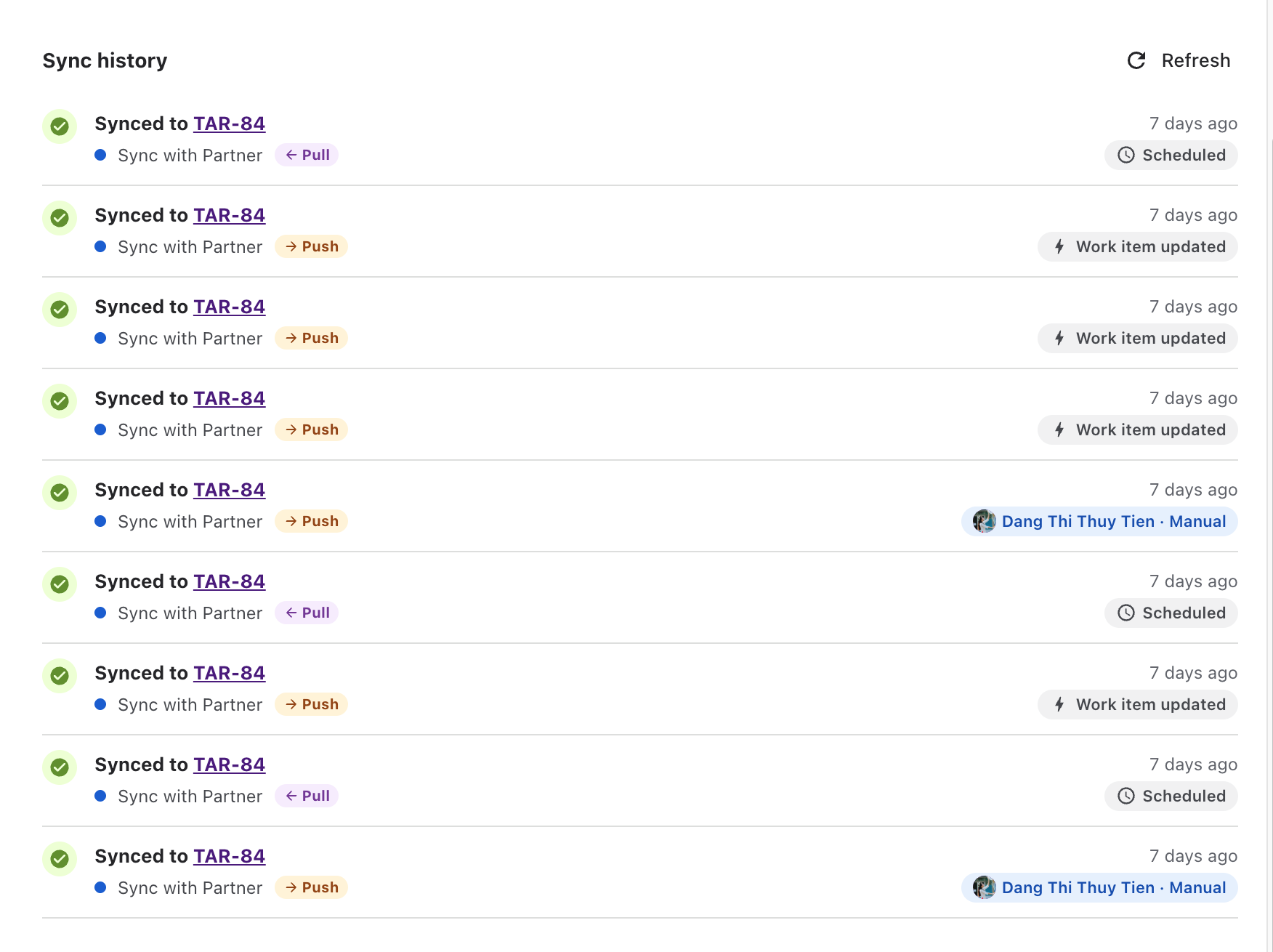
Triggers
|
Label |
What started the run |
|---|---|
|
A Jira event, for example Work item created, Work item updated, Status changed, Priority changed, Comment added, Comment edited, Comment deleted, Attachment added or Attachment deleted |
A change on this work item. |
|
Person's name · Manual |
A Jira admin started a push or pull from the Sync Bridge panel. |
|
Person's name · Retry |
A Jira admin selected Retry in the Sync Bridge panel. |
|
API · token name |
Another service called the Sync Trigger API. The token name identifies the service. |
|
Scheduled |
A scheduled pull found changes on the other Jira site. |
|
System |
Sync Bridge continued a scheduled pull that had more work items to check. |
Details
When a run covers more than one part of the work item, select the arrow (Show details) to see each part. Each line shows:
-
The result: Synced, Failed or Skipped.
-
The direction: Push or Pull.
-
What was synced, with a short summary:
|
Type |
Summary |
|---|---|
|
Fields |
How many fields were updated, for example 3 fields updated, or the reason nothing was written. |
|
Status |
The status change, shown as the IDs of the old and new status. |
|
Comments |
Counts such as 2 added, 1 updated, 1 deleted, 1 skipped, 1 failed. |
|
Attachments |
Counts such as 1 added, 1 deleted, 1 skipped, 1 failed. |
A failed line also shows its error message.
Unlink entries
When a Jira admin unlinks the work item in the Sync Bridge panel, the tab shows Unlinked from followed by the key of the old linked work item, with the rule name and who did it. An unlink entry has no status, direction or details.
New activity and older entries
-
The tab updates on its own when a new sync runs. If you've loaded older entries, it shows There's new sync activity. instead. Select Refresh to go back to the newest entries.
-
Select Show more at the bottom to load older entries.
The tab has no filters. Jira admins can search and filter the history of all work items on the admin Sync History (admin page).
How long history is kept
Sync history is kept for 90 days by default. A Jira admin can change this to 30 days, 90 days, 180 days or 1 year on the admin Sync history page. Older entries are removed.