
📘 What you will learn here
On this page you will learn how to read the Sync Bridge dashboard, the first page Jira administrators see, including its metrics, recent sync activity, the Needs attention list and connector status, so you can spot problems quickly.
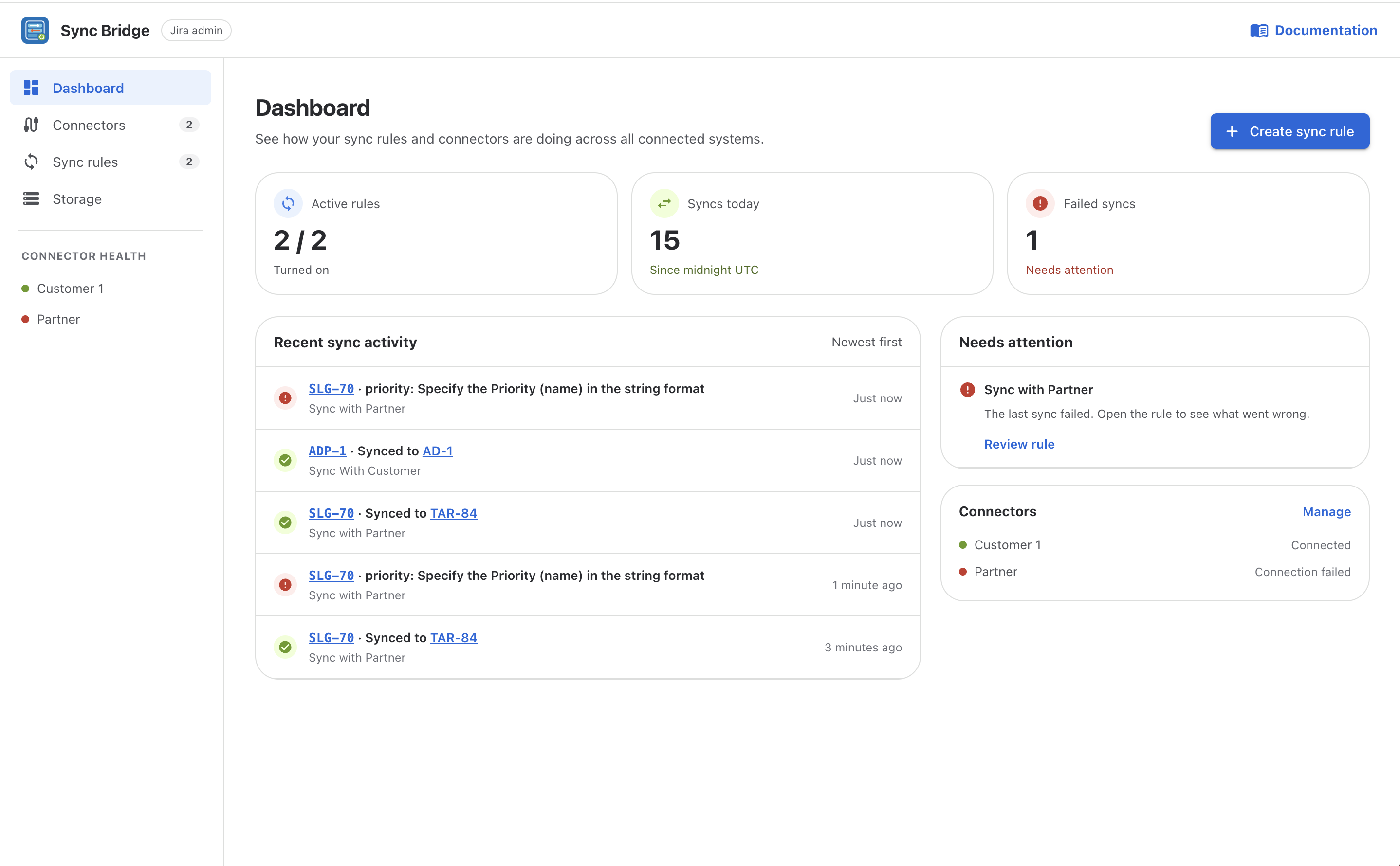
To open it, go to the Sync Bridge admin page and select Dashboard in the sidebar. To start a new rule from here, select Create sync rule.
Metrics
|
Metric |
What it shows |
What to do |
|---|---|---|
|
Active rules |
Sync rules that are turned on, out of all sync rules (for example, |
If a rule you expect to run isn't counted, open Sync rules and turn it on. |
|
Syncs today |
Sync actions recorded since midnight UTC, counted from the most recent sync history entries. It includes successful, failed and skipped actions. |
Use it as a quick activity check. For exact numbers, filter the Sync history page by time range. |
|
Failed syncs |
The number of sync rules whose most recent sync failed. Shows Needs attention when above zero, or No failures. |
Check the Needs attention list. |
Failed syncs counts rules, not individual failures. A rule drops out of the count as soon as its next sync succeeds.
Recent sync activity
Lists the five most recent sync actions. Each row shows the work item key on the source side, then either Synced to and the linked work item key, or a short result (for example, the error message or Skipped: no changes to sync). The rule name and how long ago it happened are shown below. Work item keys are links that open the work item in a new tab.
Select View all history to open the Sync history page.
Needs attention
Lists every sync rule whose last sync failed. For each rule you can:
-
View failures – open Sync history filtered to this rule and the Failed status.
-
Review rule – open the rule's settings.
When nothing has failed, the list shows No sync rules need attention.
Connectors
Lists every connector with its result from the last connection test: Connected, Connection failed or Not tested. Select Manage to open the Connectors page, where you can test a connector again or update its credentials.