
📘 What you will learn here
On this page you will learn what a sync rule is, how it decides which work items to sync, where, in which direction and what to copy, and how Jira administrators manage rules on the Sync rules page.
What a sync rule is
Each sync rule connects a source and a target:
-
Source is always This Jira site, the Jira Cloud site where Sync Bridge is installed.
-
Target is another Jira Cloud site that you reach through a connector.
A rule is built from these pieces, in this order:
-
Connectors and scope: the source scope (which work items on This Jira site the rule covers, by space, work type and status or by JQL) and the target space where Sync Bridge creates the linked work items.
-
Sync direction and triggers: Push (source to target) and Pull (target to source), each with its own triggers. Push can start manually, on Jira events or from the API. Pull can start manually or on a schedule.
-
Per-work-item sync switch (optional): lets chosen people turn the rule on or off for individual work items.
-
Field mapping: which fields sync and in which direction, plus comments, attachments and status changes.
The first time a push runs for a work item, Sync Bridge creates a work item in the target space and links the two. Later pushes and pulls update the linked pair.
The Sync rules page
Open Sync Bridge from Jira administration and select Sync rules. The page lists every rule with these columns:
|
Column |
What it shows |
|---|---|
|
Name |
The rule name. Select it to open the rule. |
|
Source → target |
The source connector (This Jira site) and the target connector. |
|
Direction |
Push only, Pull only or Both directions. |
|
Schedule |
How often pull runs: No schedule (pull is off), Every 5 minutes (default), a description of your cron expression, Manual only (only manual pull is on) or Off. |
|
Last synced |
The result of the rule's latest sync (Synced, Failed, Skipped or Not synced yet) and how long ago it ran. |
|
Enabled |
A switch that turns the rule on or off. A rule that is off doesn't sync anything. |
The buttons above the list are Export all, Import rules and Create sync rule.
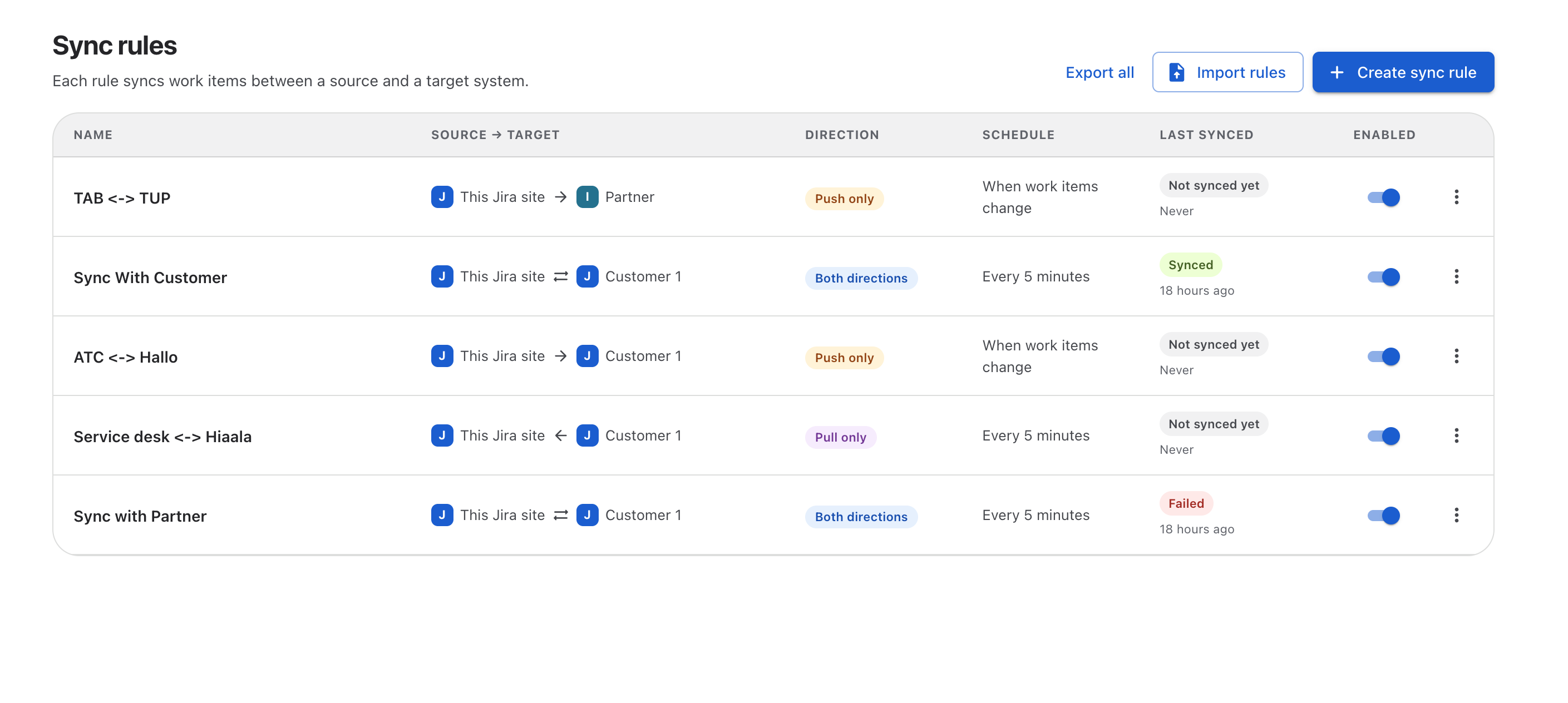
Row actions
Select the more actions menu at the end of a row:
|
Action |
What it does |
|---|---|
|
Edit |
Opens the rule in the editor. |
|
Copy link |
Copies a direct link to the rule, so you can share it with another administrator. |
|
Duplicate |
Creates a copy of the rule that is turned off. See Duplicate, Import and Export Sync Rules. |
|
Export… |
Exports the rule to a JSON file. |
|
Delete |
Permanently deletes the rule and its field mappings. You must turn the rule off first. Sync history for work items it linked is kept. |
On a trial license you can create up to 3 sync rules.