
📘 What you will learn here
On this page you will learn how to build a field value or a comment from the data of the work item being synced with smart values: the syntax, every path and function, how results are written, and how to test a template.
For example: Synced from {{key}} or {{duedate.plusDays(7).jiraDate}}. This page is for Jira administrators who configure sync rules, and is precise enough to be used by AI tools.
You can use smart values in two places on the Field mapping tab of a sync rule:
-
The Smart value transform of a field mapping. See Field Mapping.
-
The Smart value transform of the Comments card. See Comments Sync.
The other transforms (Direct copy, Value map, Static value) are described on Field Mapping.
Syntax
-
A token is a path in double curly braces:
{{path}}. Everything outside tokens is literal text, including line breaks you type. -
Path segments are separated by dots:
{{assignee.displayName}}. -
A function is a segment. Functions without arguments are written without parentheses:
{{created.jiraDate}}. Functions with arguments use parentheses:{{created.format("DD/MM/YYYY")}}. -
Functions chain from left to right, and each one works on the result of the previous one:
{{summary.toLowerCase.abbreviate(50)}}. -
Text arguments go in double or single quotes. Inside quotes,
\n,\tand\rare a new line, tab and carriage return; a backslash before any other character keeps that character, for example\". Number arguments don't need quotes:{{summary.left(10)}}. -
Spaces just inside the braces are ignored:
{{ key }}works. -
A token that isn't closed with
}}is kept as literal text. -
Field IDs are case sensitive and are the Jira field IDs, for example
summary,duedate,customfield_10050.
What a template can read
A template is evaluated against one work item: the one Sync Bridge reads from. When pushing, that's the work item on This Jira site; when pulling, it's the linked work item on the other site.
Root paths
|
Path |
What it returns |
Example |
|---|---|---|
|
|
Any field of the work item, by field ID. |
|
|
|
Work item key. |
|
|
|
Work item ID (a number). |
|
|
|
Current date and time. Add a date function. |
|
|
|
Value of the field the mapping reads from. Only in field mappings, and only when that field is selected. |
|
|
|
Full work item data as returned by the Jira REST API (advanced). |
|
|
|
A field read only when the value travels from source to target. Empty when pulling. |
|
|
|
A field read only when the value travels from target to source. Empty when pushing. |
|
|
|
The comment being synced. Only in comment templates. See Comment paths below. |
|
Use source. and target. in a Both directions mapping when the same custom field ID means different things on the two sites. A bare {{customfield_10098}} always reads whichever work item is being read in that direction.
Properties of common fields
Object fields have properties. The editor suggests these; the notes say which property the receiving field accepts.
|
Field |
Properties |
Notes |
|---|---|---|
|
|
|
Use |
|
|
|
|
|
|
|
Use |
|
|
|
Use |
|
|
|
|
|
|
|
|
|
|
|
The work item's space. |
|
|
|
|
|
|
|
The |
|
|
|
|
|
|
|
|
|
|
|
Jira leaves out |
|
Select, radio buttons, multi-select, checkboxes |
|
Use |
|
Cascading select |
|
|
|
User, multi-user |
|
Use |
|
Group, multi-group |
|
|
|
Version, multi-version |
|
Use |
|
Project picker custom field |
|
Use |
|
Team |
|
|
Comment paths
In a comment template, {{comment}} is the comment being synced. All work item paths above work too.
|
Path |
What it returns |
|---|---|
|
|
Comment text, as plain text. |
|
|
Author's name. |
|
|
Author's account ID. |
|
|
Dates. Add a date function, for example |
|
|
Comment ID. |
|
|
The comment's visibility restriction, if any. |
|
|
|
Lists
When a path reaches a list, a property is read from every item: {{components.name}} returns the names of all components. List functions work on the list itself: {{labels.first}}.
How results are written
|
Result |
Rendered as |
|---|---|
|
Text, number |
As is. |
|
True or false |
|
|
List |
Items joined with |
|
Object, for example a user or an option |
Its first non-empty property of: |
|
Rich text, for example |
Plain text. Formatting, images and other media aren't kept. |
|
Empty, missing or unknown path |
Nothing. See below. |
When a token resolves to nothing:
-
If the template is a single token, for example
{{assignee.accountId}}, the receiving field is left unchanged rather than cleared. -
If the template mixes text and tokens, the token becomes empty text and the rest is written.
Writing into a field: the rendered text is written into the receiving field in the form that field needs. For example, text written to Priority or Work type is used as the name, text written to a user field is used as the account ID, text written to Labels becomes one label, and text written to a number field must be a number. For date fields, write dates as YYYY-MM-DD, for example with jiraDate.
Time zone and working time: date functions are evaluated in UTC, so the hour and even the day can differ from what you see in Jira. prettyDuration uses 8-hour days and 5-day weeks.
Functions
Which functions you can use depends on the value: date functions on dates, text functions on text, and so on. Dates are also text, so text functions work on dates too, for example {{created.left(4)}} returns the year. Functions that return a date can be chained with more date functions; the others end the date chain.
Examples below assume created is 21 August 2026, 10:30 UTC (a Friday), summary is Login fails on Safari, and labels is backend, urgent.
Date functions: formatting
|
Function |
Description |
Example |
Result |
|---|---|---|---|
|
|
Format with a pattern. See Format patterns below. |
|
21/08/2026 |
|
|
Date only. |
|
2026-08-21 |
|
|
Date and time with time zone offset. |
|
2026-08-21T10:30:00.000+0000 |
|
|
Short date. |
|
21/Aug/26 |
|
|
Short date and time. |
|
21/Aug/26 10:30 AM |
|
|
Long date. |
|
21 August 2026 |
|
|
Long date and time. |
|
21 August 2026 10:30 AM |
Date functions: arithmetic (chainable)
|
Function |
Description |
Example |
Result |
|---|---|---|---|
|
|
Add or subtract n days. |
|
2026-08-24 |
|
|
Add or subtract n weeks. |
|
2026-09-04 |
|
|
Add or subtract n months. |
|
2026-07-21 |
|
|
Add or subtract n years. |
|
2027-08-21 |
|
|
Add or subtract n hours. |
|
12 |
|
|
Add or subtract n minutes. |
|
10 |
Date functions: boundaries and setters (chainable)
|
Function |
Description |
Example |
Result |
|---|---|---|---|
|
|
Start of the month (day 1, 00:00). |
|
2026-08-01 |
|
|
End of the month (last day, 23:59). |
|
2026-08-31 |
|
|
Start of the week (Monday). |
|
2026-08-17 |
|
|
End of the week (Sunday). |
|
2026-08-23 |
|
|
Start of the day (00:00). |
|
0 |
|
|
Set the day of the month. |
|
2026-08-01 |
|
|
Set the month (1 = January). |
|
2026-12-21 |
|
|
Set the year. |
|
2027-08-21 |
Date functions: parts
|
Function |
Description |
Example |
Result |
|---|---|---|---|
|
|
Day of the month (1–31). |
|
21 |
|
|
Day of the week (1 = Monday, 7 = Sunday). |
|
5 |
|
|
Day name. |
|
Friday |
|
|
Month (1 = January). |
|
8 |
|
|
Four-digit year. |
|
2026 |
|
|
Hour (0–23). |
|
10 |
|
|
Minute (0–59). |
|
30 |
|
|
Second (0–59). |
|
0 |
Date functions: comparison and difference
The argument can be another date path, for example duedate or now, or a date in quotes, for example "2026-01-01". If the argument can't be read as a date, comparisons return false, compareTo returns 0 and diff returns zeros.
|
Function |
Description |
Example |
Result |
|---|---|---|---|
|
|
True if later than the given date. |
|
true |
|
|
True if earlier than the given date. |
|
false |
|
|
True if it's the same date and time. |
|
true |
|
|
-1 if earlier, 0 if the same, 1 if later. |
|
1 |
|
|
Time from the given date to this date. Add |
|
Whole days since the work item was created |
prettyPrint returns text such as 2 days 3 hours 4 minutes, with a leading - when negative, and 0 seconds for no difference.
Format patterns
format accepts these tokens. Put literal text in square brackets, for example format("[Due] DD MMM YYYY").
|
Token |
Output for 21 August 2026, 10:30 UTC |
|---|---|
|
|
2026, 26 |
|
|
August, Aug, 08, 8 |
|
|
21, 21 (day of the month) |
|
|
Friday, Fri, Fr, 5 (day of the week, 0 = Sunday) |
|
|
10, 10, 10, 10 (24-hour and 12-hour) |
|
|
30, 30, 00, 0, 000 |
|
|
AM, am |
|
|
+0000, +00:00 |
A pattern with letters that aren't tokens resolves to nothing. For example, the Java-style dd/MM/yyyy doesn't work: use DD/MM/YYYY.
Text functions
|
Function |
Description |
Example |
Result |
|---|---|---|---|
|
|
Number of characters. |
|
21 |
|
|
True if empty or only spaces. |
|
false |
|
|
True if it contains the text. |
|
true |
|
|
True if it starts with the text. |
|
true |
|
|
True if it ends with the text. |
|
false |
|
|
Convert to uppercase. |
|
LOGIN FAILS ON SAFARI |
|
|
Convert to lowercase. |
|
login fails on safari |
|
|
Remove spaces at the start and end. |
|
Login fails on Safari |
|
|
Encode for use in a URL. |
|
Login%20fails%20on%20Safari |
|
|
Add text to the end. |
|
Login fails on Safari [synced] |
|
|
Characters from position start (counting from 0) up to, not including, end. Without end, to the end of the text. |
|
Login |
|
|
First n characters. |
|
Login |
|
|
Last n characters. |
|
Safari |
|
|
Replace every match. The text to find is literal, not a regular expression. |
|
Login fails on Chrome |
|
|
Shorten to n characters and add … when something was cut. |
|
Login fail… |
|
|
Split into a list (default separator: a space). Add list functions after it. |
|
Login |
List functions
The sum, average, max and min examples assume a text custom field customfield_10060 holding 1,2,3.
|
Function |
Description |
Example |
Result |
|---|---|---|---|
|
|
First item. |
|
backend |
|
|
Last item. |
|
urgent |
|
|
Item at a position, counting from 0. |
|
urgent |
|
|
Number of items. |
|
2 |
|
|
Remove duplicates. |
|
Each word once |
|
|
Join into text. Default separator: comma and space. |
|
backend | urgent |
|
|
Sum of the numbers in the list. Items that aren't numbers are ignored. |
|
6 |
|
|
Average of the numbers in the list. 0 when there are no numbers. |
|
2 |
|
|
Largest item. Compares as numbers when all items are numbers, otherwise as text, which also works for dates. |
|
3 |
|
|
Smallest item, compared the same way as |
|
1 |
Number functions
|
Function |
Description |
Example |
Result |
|---|---|---|---|
|
|
Seconds as a Jira duration (8-hour days, 5-day weeks). |
|
2w, 3d, 4h |
|
|
Absolute value. |
|
Days between now and the due date, without sign |
|
|
Round to a whole number. |
|
3 |
Common examples
|
Goal |
Receiving field |
Template |
|---|---|---|
|
Prefix the summary with the source key |
Summary |
|
|
Set a due date one week from now |
Due date |
|
|
Copy the assignee as a user |
Assignee |
|
|
Keep the reporter's name in a text field |
Short text custom field |
|
|
Add a note to the description |
Description |
|
|
Copy component names as one label |
Labels |
|
|
Shorten a long summary |
Summary |
|
|
Write the priority as text |
Short text custom field |
|
|
Header for synced comments |
Comment template |
|
Write and test a template
-
On the Field mapping tab, click the transform chip of a row and pick Smart value, or open the transform of the Comments card.
-
In Smart value template, type
{{. A list of suggestions opens: fields, built-in paths, properties and functions that fit the value at the cursor. Use the arrow keys to move, Enter or Tab to insert, and Esc to close. -
Click Test template.
-
Enter a work item key in Source work item key or Target work item key. For a Both directions mapping, first choose the side in Preview on, then enter the key in Work item key.
-
Click Run preview. The output is shown under Result, or (Empty result) when the template renders nothing.
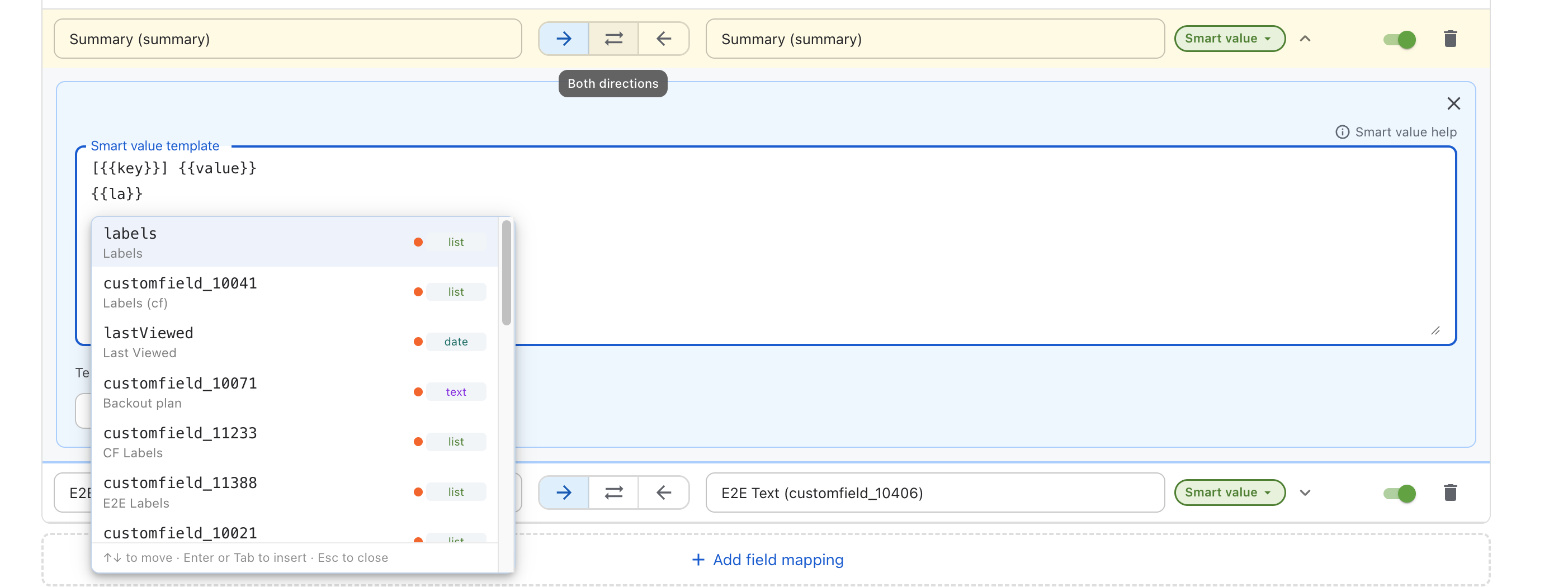
The preview reads the real work item: on This Jira site directly, on the other site through the rule's connector. Nothing is written. For a comment template, the preview uses the latest comment on the work item; if there's none, you see "This work item has no comments, so comment smart values are empty. Try a work item that has at least one comment." The Smart value help link above the template opens this documentation.