
📘 What you will learn here
On this page you will learn how to set up field mappings that decide which fields Sync Bridge copies between This Jira site and the other Jira Cloud site, in which direction, and how each value is changed on the way.
This page is for Jira administrators who set up sync rules. It covers the Field mappings table on the Field mapping tab of a sync rule. Comments, attachments and status changes are set up below the table, under Special contents; see Comments Sync, Attachments Sync and Status Mapping.
The Field mapping tab is available after you save the Configuration tab of a new rule. See Create a Sync Rule.
How the table is laid out
Each row maps one field. The left column is the source (This Jira site), the right column is the target (the connector's site). Each column header shows the name of that side.
|
Column |
What it does |
|---|---|
|
Source field (left) |
The field on This Jira site. Pick it from the list, which shows each field as Name (field ID) with a badge such as System field or the custom field type. |
|
Direction (middle) |
Which way this field's value travels. See Direction of a mapping below. |
|
Target field (right) |
The field on the other site, picked the same way. |
|
Transform |
How the value is changed before it's written. Click the chip to pick a transform; click the arrow next to it to Show settings or Hide settings. |
|
Enabled |
Turn a mapping off without deleting it. Mappings that are off are ignored during sync. |
|
Delete |
Removes the mapping. |
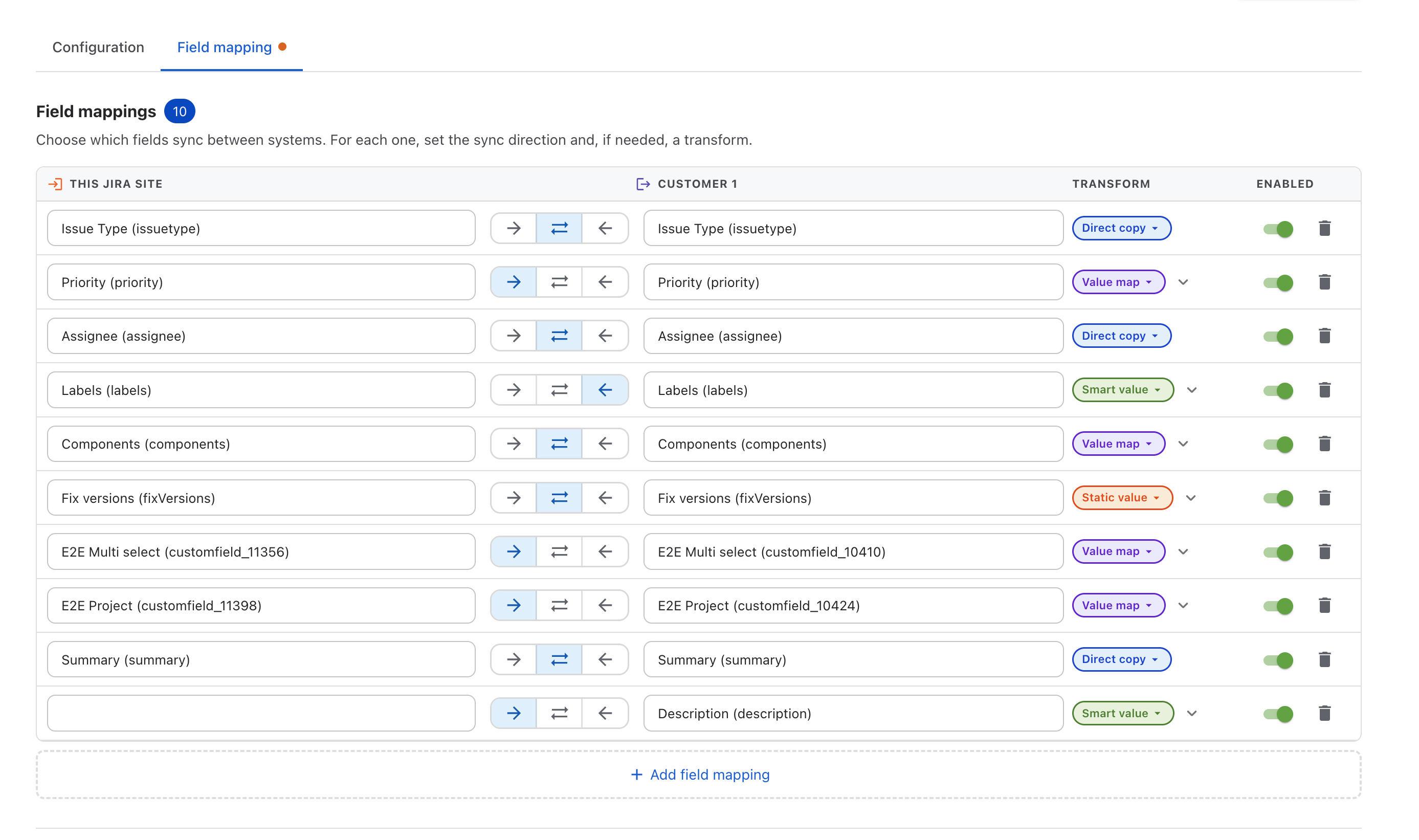
Add a field mapping
-
Open the sync rule and go to the Field mapping tab.
-
Click Add field mapping. A new row is added with the Direct copy transform and the Source → Target direction.
-
Pick the source field and the target field.
-
Pick the direction.
-
Optional: click the transform chip and pick a different transform, then fill in its settings.
-
Click Save changes.
When a new rule's table is still empty, Sync Bridge adds two rows for you with the target fields Summary and Work type already selected. Pick the source fields for them.
Validation messages
Saving is blocked until every row is complete. The messages you can see are:
|
Message |
What to do |
|---|---|
|
Add at least one field mapping before saving. |
A rule needs at least one row. |
|
Map these required Jira fields before saving: Summary, Work type. |
Add a row whose target field is the listed field. See Required fields when creating work items below. |
|
Select a source field. / Select a target field. |
Pick the missing field. Static value and Smart value rows need only the side that receives the value. |
|
Add at least one value pair to the value map. / Enter both a source value and a target value in every row. |
Complete the Value map settings. |
|
Enter a smart value template. |
Enter a template for the Smart value transform. |
|
This template uses {{value}}, so select the field it reads from. |
Pick the field on the reading side, or remove |
|
Enter a static value. |
Enter the value for the Static value transform. |
Direction of a mapping
Each row has its own direction, independent of the other rows.
|
Direction |
What it does |
Notes |
|---|---|---|
|
Source → Target |
Copies the source field from This Jira site to the target field on the other site. |
Default for new rows. Used when the rule pushes. |
|
Target → Source |
Copies the target field from the other site to the source field on This Jira site. |
Used when the rule pulls. |
|
Both directions |
Copies the value both ways. |
Used for both push and pull. |
A row only takes effect when the matching direction is turned on for the rule: Source → Target rows need push, Target → Source rows need pull. Pull updates work items that are already linked; it doesn't create new work items. See Create a Sync Rule for push and pull.
A Value map used in Both directions or Target → Source is applied in reverse when pulling. If more than one source value maps to the same target value, the table shows: "More than one value maps to … When syncing back, the first match is used, so the original value might not be restored." When the work item on This Jira site already holds a value that maps to the incoming one, Sync Bridge leaves it unchanged.
Supported fields
The field lists offer only the fields Sync Bridge can write.
System fields
|
Field |
Field ID |
Value map suggestions |
Static value |
|---|---|---|---|
|
Summary |
|
- |
Yes |
|
Description |
|
- |
Yes |
|
Work type |
|
Yes |
Yes |
|
Priority |
|
Yes |
Yes |
|
Resolution |
|
- |
Yes |
|
Assignee |
|
Yes |
Yes |
|
Reporter |
|
Yes |
Yes |
|
Due date |
|
- |
Yes |
|
Labels |
|
Yes |
Yes |
|
Components |
|
Yes |
Yes |
|
Fix versions |
|
Yes |
Yes |
|
Affects versions |
|
Yes |
Yes |
|
Environment |
|
- |
Yes |
|
Time tracking |
|
- |
- |
|
Remaining estimate |
|
- |
- |
|
Original estimate |
|
- |
- |
"Value map suggestions: Yes" means Sync Bridge suggests the field's values when you fill in a value map, and maps each item of a multi-value field one by one. A value map still works on other fields by matching the value's text.
Custom field types
The badge in the field list shows the type.
|
Badge |
Jira custom field type |
Value map suggestions |
Static value |
|---|---|---|---|
|
Short text |
Text field (single line) |
- |
Yes |
|
Paragraph |
Text field (multi-line) |
- |
Yes |
|
Number |
Number field |
- |
Yes |
|
Date |
Date picker |
- |
Yes |
|
Date time |
Date time picker |
- |
Yes |
|
URL |
URL field |
- |
Yes |
|
Labels |
Labels |
Yes |
Yes |
|
Select |
Select list (single choice) |
Yes |
Yes |
|
Multi-select |
Select list (multiple choices) |
Yes |
Yes |
|
Cascading select |
Select list (cascading) |
- |
- |
|
Radio buttons |
Radio buttons |
Yes |
Yes |
|
Checkboxes |
Checkboxes |
Yes |
Yes |
|
User |
User picker (single user) |
Yes |
Yes |
|
Multi-user |
User picker (multiple users) |
Yes |
Yes |
|
Group |
Group picker (single group) |
Yes |
Yes |
|
Multi-group |
Group picker (multiple groups) |
Yes |
Yes |
|
Version |
Version picker (single version) |
Yes |
Yes |
|
Multi-version |
Version picker (multiple versions) |
Yes |
Yes |
|
Project |
Picker for a single space |
Yes |
Yes |
|
Read-only |
Read-only text field |
- |
Yes |
|
Epic name |
Epic name |
- |
Yes |
Other field types, for example Sprint, Rank, Team and fields added by other apps, aren't offered.
Transforms
Click the transform chip on a row to pick one of these. For the full smart value syntax, see Smart Values and Transformations.
|
Transform |
What it does |
Settings |
|---|---|---|
|
Direct copy |
Copies the value as is. |
None. |
|
Value map |
Replaces each value with the value you paired it with, for example priority Highest → Critical. |
Click Add value pair and fill in Source value and Target value. Values that have no pair are copied unchanged. |
|
Smart value |
Builds the value from a template, for example |
Enter a Smart value template. Use Test template to try it on a real work item. |
|
Static value |
Always writes the same value, whatever the other side holds. |
Enter or pick the Static value. Date fields show a date picker, date time fields a date and time picker, multi-value fields let you pick several values. |
How values are matched in a Value map: users by account ID, select list options by their value, spaces by key, and work types, priorities, components, versions and groups by name. For other fields, the text of the value is used.
For Static value and Smart value, only the receiving field is needed: for Source → Target pick the target field, for Target → Source pick the source field, for Both directions pick both.
Required fields when creating work items
When Sync Bridge pushes a work item that has no linked work item yet, it creates one in the target space set on the rule. To save the field mappings, you must map these target fields:
-
Summary
-
Work type
The target space can require more fields on its create screen. Map those too, for example with a Static value. Otherwise the other site rejects the new work item and the sync fails.
Every field you map must also be on the edit screen of the work item that receives it. Jira saves all mapped fields in one update, so one field it rejects fails the whole update.
Users: Assignee, Reporter and user fields
User values are copied as Atlassian account IDs. A user is set on the other site only if that account can be used there, for example as an assignee in the target space. If not, the other site rejects the update and the sync fails.
-
To translate users between the sites, use a Value map with account IDs as the values.
-
To always set one user, use a Static value.
-
In a Smart value template, write
{{assignee.accountId}}rather than{{assignee.displayName}}when the result goes into a user field.
When a value can't be mapped
|
Situation |
What happens |
|---|---|
|
A Value map has no pair for the value. |
The value is copied unchanged. |
|
A Smart value template is a single token, for example |
The receiving field is left unchanged. |
|
A Smart value template mixes text and tokens, and a token resolves to nothing. |
The token is replaced with empty text and the rest is written. |
|
A Static value is set on a field that doesn't support it. |
The sync fails with "You can't set a fixed value for … Change this field mapping." |
|
The other site rejects a value, for example an option, version or user that doesn't exist there. |
The whole field update fails and the sync is recorded as failed in Sync History. |