
📘 What you will learn here
On this page you will learn how Jira administrators reuse sync rules by duplicating a rule on the same site, or by exporting rules to a JSON file and importing them on another Jira site, for example from a test site to production.
Duplicate a sync rule
-
Go to Sync rules.
-
In the rule's row, open the more actions menu and select Duplicate.
-
A message confirms the copy and says it's turned off. Select Open rule to edit it.
|
Copied |
Not copied |
|---|---|
|
|
The copy gets the original name with a number, for example Billing sync (2). Because the copy has no synced work items yet, you can change its connectors and scope. This is the recommended way to retarget a rule whose settings are locked. See Settings Locked After Work Items Are Synced.
Before you turn the copy on, change its scope or target. An unchanged copy of an active rule would sync the same work items a second time.
If the copy can't be saved completely, Sync Bridge removes it and shows the reason, so you never get a half-copied rule.
Export sync rules
-
Go to Sync rules.
-
To export one rule, open its more actions menu and select Export…. To export every rule, select Export all.
-
Review the list of rules in the dialog. Each one shows its connectors and a summary, such as “14 field mappings · Comments · 3 status transitions”.
-
Select Download .json, or Copy JSON to copy the content. Select Show JSON to see it first.
The file is named slg-sync-rules-<rule-name>-<date>.json for one rule, or slg-sync-rules-<date>.json for several.
You can import up to 25 rules at a time. If you export more than 25, the export is split into several files, and the dialog shows a Download part 1 of N button for each. Import the files one by one. Copy JSON isn't available for a split export.
What the file contains
-
Each rule's name, connectors, scope, direction and trigger settings, per-work-item sync switch settings, field mappings, and comment, attachment and status mapping settings.
-
A short description of each connector the rules use: its name, type and URL, so it can be matched on the other site.
The file doesn't include connector credentials or API trigger tokens. It also doesn't include whether a rule is on, its sync history or its links to work items.
For the file structure, see Sync Rule Reference.
Import sync rules
Before you import, create connectors on this site for the Jira sites the rules sync with.
-
Go to Sync rules and select Import rules.
-
Choose file: drop the exported JSON file into the dialog or select it to browse. You can also select Paste JSON instead, paste the content and select Next.
-
Match connectors: for each connector in the file, check the connector on this site that it maps to, and change it if needed. Then select Next.
-
Review rules: select the rules to import, read any warnings, and select Import N rules.
-
Review the result: how many rules were imported, failed and skipped. Select Open rule next to an imported rule to review it, then select Done.
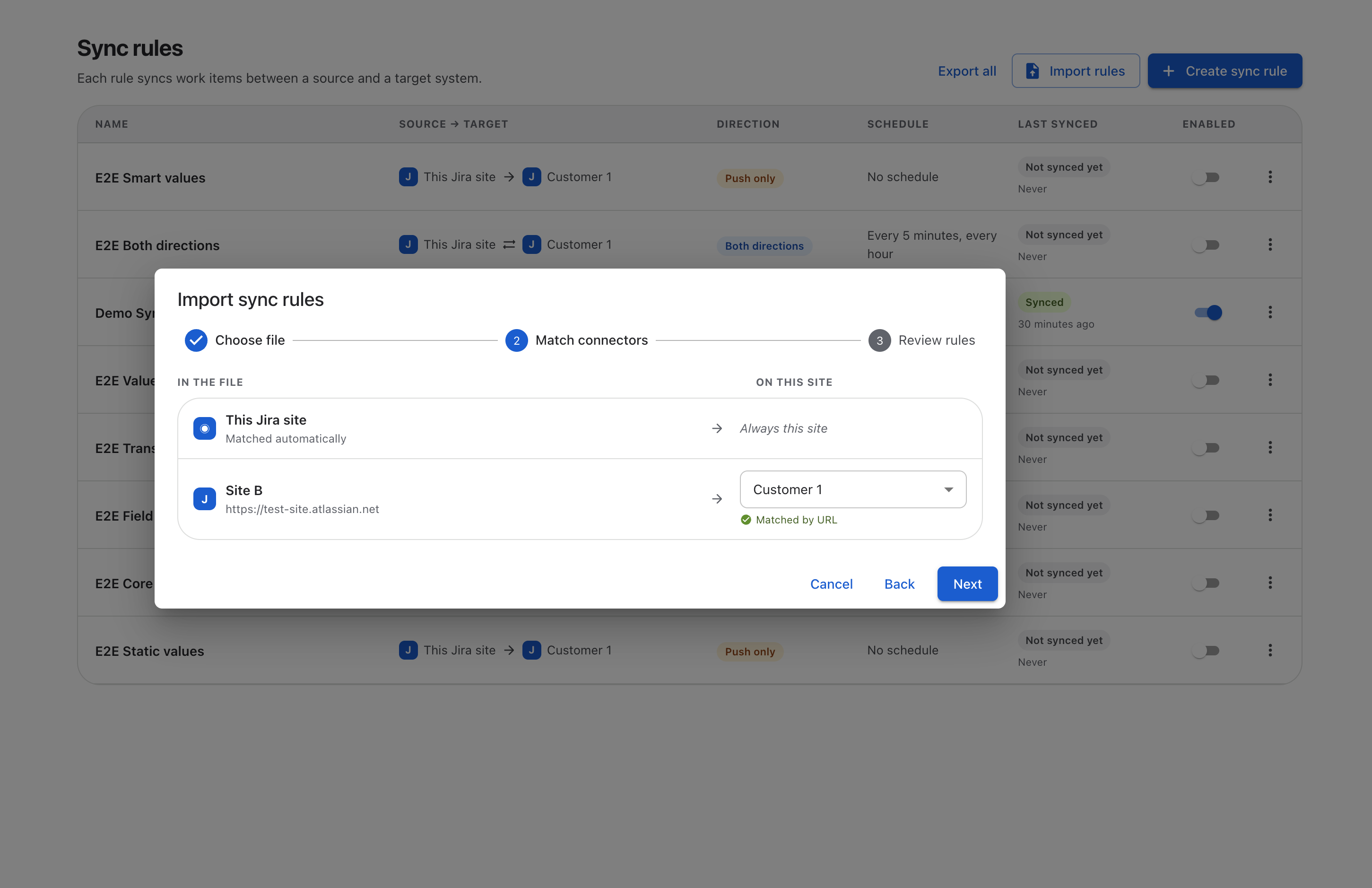
How connectors are matched
Sync Bridge tries to match each connector in the file to a connector on this site, in this order:
|
Match |
Label shown |
|---|---|
|
This Jira site in the file always becomes This Jira site here. |
Matched automatically / Always this site |
|
Same connector ID (when you import on the site you exported from) |
Matched by ID |
|
Same type and URL |
Matched by URL |
|
Same type and name (not case-sensitive) |
Matched by name |
|
No match |
No matching connector. Select one. |
If you pick a connector yourself, it shows Selected by you. A rule whose connector isn't matched can't be imported: select a connector on the Match connectors step, or clear the rule's checkbox to import the rest.
What happens on import
-
Imported rules are always turned off. Review each one, then turn it on.
-
If a rule with the same name already exists, the imported rule gets a number, for example Billing sync (2). The review step says “Renamed because a rule named … already exists.”
-
Each rule is checked the same way as a rule you create by hand. If its field mappings or other settings aren't valid, that rule fails and nothing is created for it. Other rules still import.
-
API tokens aren't imported. If a rule uses the API trigger, create new tokens after import.
Warnings to check
Warnings don't stop an import, but point to settings that may not fit this site. Check them before you turn the rule on:
-
Status mapping uses workflow transitions from the original site.
-
Field mappings use custom field IDs that may be different on this site.
-
The rule refers to spaces that must exist on this site.
-
The source scope uses work type IDs or status IDs, which usually differ between sites.
-
The source JQL is imported unchanged.
-
Comment or attachment filters name people from the original site.
-
API triggers are on, but API tokens aren't exported.
Errors you might see
|
Message |
What to do |
|---|---|
|
This file isn't a Sync Bridge export. Choose a file you exported from Sync Bridge. |
Use a file exported from the Sync rules page. |
|
… isn't a JSON file. Choose a .json file. |
Choose a file ending in .json. |
|
… is too large (max 5 MB). Choose a sync rule export file. |
Check that you chose the right file. |
|
This isn't valid JSON (…). Check that you pasted the whole file. |
Paste the complete file content. |
|
This file comes from a newer version of Sync Bridge. Update the app, then import it again. |
Update Sync Bridge on this site. |
|
You can import up to 25 sync rules at a time. … |
Import a file with 25 rules or fewer. |
|
Can't import: … |
The rule itself isn't valid, for example it has no name, no direction turned on, or the same connector as source and target. Its checkbox is disabled. |
|
Choose a connector on this site for …, then try again. |
Match the connector on the Match connectors step. |
|
Your trial allows up to 3 sync rules. Upgrade to import more. |
Rules over the trial limit fail. Upgrade, or import fewer rules. |