
📘 What you will learn here
On this page you will learn how Jira administrators add, test, edit and delete the connectors Sync Bridge uses to reach another Jira Cloud site, and what the connector list and its status values show.
A connector holds the address and credentials Sync Bridge uses to reach another Jira Cloud site. You need one before you can create a sync rule that syncs with that site.
To manage connectors, open the Sync Bridge admin page and select Connectors in the sidebar.
The connector list
The list always starts with This Jira site, marked Current site. It stands for the Jira site where Sync Bridge is installed. You don't add it, and you can't edit, test or delete it. Its status is always Connected (Live).
Each connector row shows:
|
Column |
What it shows |
|---|---|
|
Connector |
The connector name and site URL. |
|
System |
The type of system. In this release, always Jira Cloud. |
|
Auth |
How Sync Bridge signs in: Basic (email and API token) for connectors you add. |
|
Status |
The result of the last connection test, and when it ran (for example, Tested 2 hours ago, or Not tested yet). |
|
Used by |
How many sync rules use the connector, or Not used. |
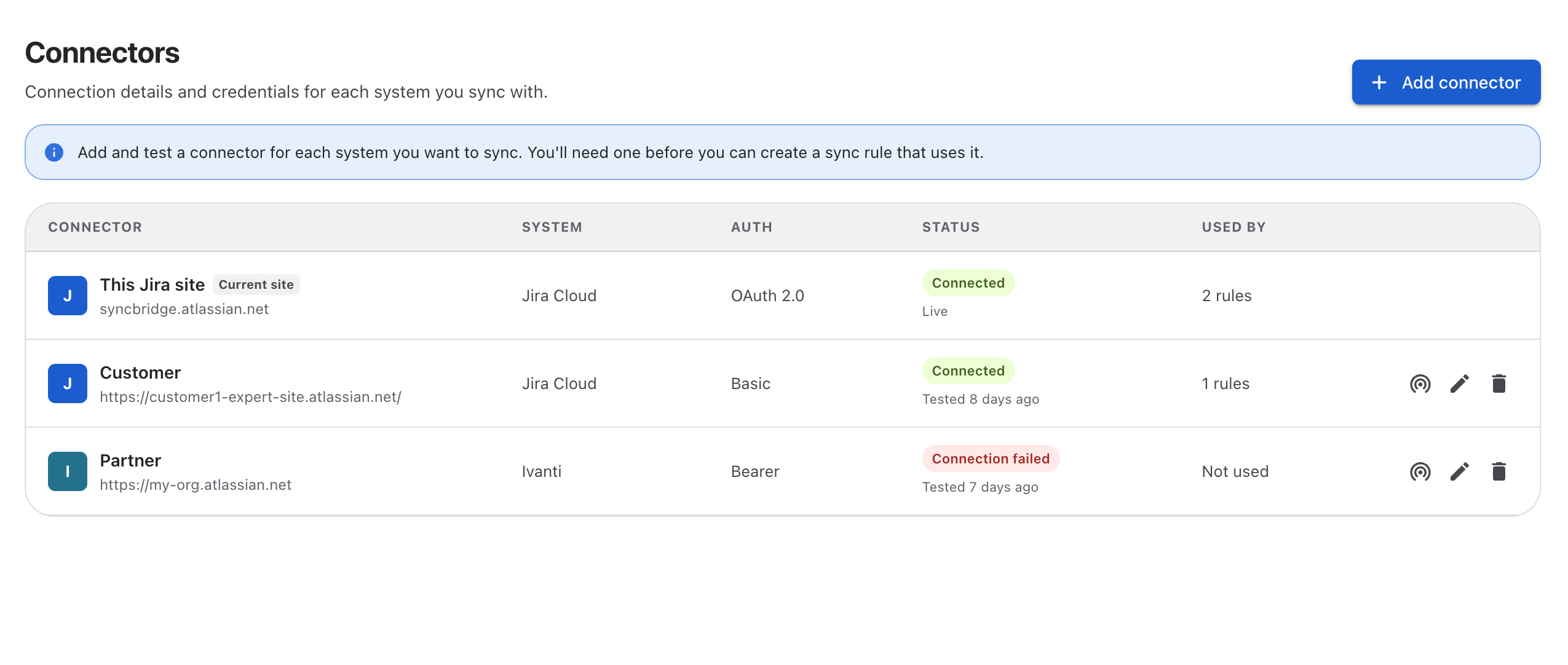
Status values
|
Status |
Meaning |
|---|---|
|
Connected |
The last test reached the site and the credentials were accepted. |
|
Connection failed |
The last test couldn't reach the site or the credentials were rejected. |
|
Not tested |
The connector hasn't been tested yet. |
Before you start
You need an Atlassian account on the other Jira Cloud site and an API token for it. Sync Bridge acts on the other site as this account, so changes it makes there appear under this account's name.
-
Use an account that is a Jira administrator on the other site. If it isn't, the connection still works, but some features, like loading spaces and workflows, won't.
-
Create the API token at id.atlassian.com while signed in as that account. The connector form has a Create an API token link that opens this page.
Add a connector
-
Select Add connector.
-
Fill in the fields (see the table below).
-
Select Test connection and check the result.
-
Select Add.
|
Field |
What it does |
Notes |
|---|---|---|
|
Name |
The name shown in Sync Bridge, for example in sync rules and Sync history. |
Required. |
|
System |
The type of system. |
Always Jira Cloud. |
|
Site URL |
The address of the other site, for example |
Required. Must be a valid URL that starts with |
|
|
The email address of the account Sync Bridge signs in as. |
Required. |
|
API token |
The API token for that account. |
Required. Stored securely and never shown again. |
Test connection becomes available once the site URL, email and API token are filled in. A successful test shows Connected to followed by the site name and response time. A failed test shows Couldn't connect and the reason, for example that the credentials were rejected or the URL wasn't found. If you change any of these fields after testing, test again.
You can save a connector without testing it. Its status is then Not tested.
Test a connector
To check a saved connector, select the Test connection icon on its row. The Status column updates with the result. If the test fails, Sync Bridge shows a message asking you to check the base URL and credentials.
Edit a connector
-
Select the Edit connector icon on the connector's row.
-
Change the name or site URL as needed.
-
To change the credentials, enter a new email and API token. Leave the fields blank to keep the current ones. The email is filled in for you; the API token is never shown.
-
Select Save.
When an API token expires or is revoked, syncs that use the connector fail. Edit the connector, enter a new API token, test it and save.
Delete a connector
-
Select the Delete connector icon on the connector's row.
-
Select Delete to confirm.
Deleting a connector can't be undone. It removes the saved credentials too.
You can't delete a connector that sync rules still use. The confirmation dialog says how many rules use it, and Delete stays unavailable. Delete those rules or change them to use another connector first.